









<h1>Gaming Joystick Comparison: How to Choose the Right One for Your Device and Games</h1>
Comparing Gaming Controllers: What to Know Before You Buy
Before comparing prices, make sure the controller is compatible with the device you play on and supported by your games. Being able to connect it to a computer or console does not guarantee that every game will work with it or that all of its features will be available.
This guide is about handheld gaming controllers, not dedicated joysticks. Joysticks are a separate category and are not a direct alternative to handheld controllers.
When comparing handheld gaming controllers, start with compatibility with your device and games. Then consider the connection, comfort, power source, and any extra features that suit the way you play. This will help you choose based on what you actually need, rather than paying for features you may never use.
A practical order for checking is: first, make sure the controller is compatible with your computer, console, or phone; next, confirm that it is supported by the games you plan to play; only then compare comfort, connectivity, power, and additional features. Don’t assume that simply connecting the controller to your device is enough. A Bluetooth or USB connection does not guarantee that a game will recognize the controller, that every control will be available, or that all of its features will work.
For PC games, check the game’s store page for details on full or partial controller support. Partial support may mean that you can play with a controller, but some actions still require a mouse or keyboard. Steam also notes that not all games support controllers, and distinguishes between full and partial support. Learn more about controller support for games on Steam and PlayStation’s guide to gaming on PC point you to the information you should check.
Compatibility can also vary depending on the device and the features you want to use. For example, PlayStation explains that certain operating systems allow a DualSense controller to connect to other devices via Bluetooth or cable, but feature availability depends on the device and game; some advanced features are not available on phones. Before buying a controller for a device other than a PlayStation console, check PlayStation’s compatibility information.
Choosing between a wired and wireless connection depends on how you play. A wired controller suits players who usually sit close to their device and would rather not worry about charging or replacing a battery, but the cable limits how far away you can sit and how freely you can move. A wireless controller lets you sit farther away and keeps cables out of your play area, but you’ll need to check how it is powered and how often it needs to be charged or have its batteries replaced. If this matters to you, check the product details to see whether you can play while it is charging.
Comfort is personal. Consider whether the controller fits your hands, whether you can reach the buttons without changing your grip, and whether you can use it for extended periods without uncomfortable pressure. Button layout is especially important in games that require quick reactions or sequences of button presses. Extra features, such as vibration feedback or customizable buttons, are worth paying more for only if your device and games support them and you expect to use them.
Compatibility across console generations is not guaranteed, either. Nintendo says that original Switch Joy-Con controllers and the original Switch Pro Controller can connect wirelessly to Switch 2, but original Joy-Con controllers cannot attach to it physically. Some Switch games may also not work or may not be fully compatible. Check Nintendo’s compatibility details for the specific controller and game.
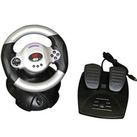
Finally, make sure the product you’re considering is actually designed for the type of gaming you do. The term “joystick” may also refer to racing wheels and simulation equipment, which are not substitutes for handheld controllers used for everyday gaming. If you’re buying a racing wheel, compare it with other products in the same category rather than with handheld controllers. Price-comparison sites may group these categories together, as illustrated by the joystick category on Zap.
Will the Controller Work with Your Device and Games?
First, check whether the controller is supported by your device, and only then compare its design and features. These are two separate checks: can you connect the controller to your computer, console, or phone, and does the specific game support it? A successful connection alone does not guarantee that you can play every game or use every feature.
On the controller’s product page, look for your specific device model and version, not just a general description such as “computer” or “phone.” Check the operating system—the software that runs your device—and compare it with the list of supported systems. Make sure your device can use the connection offered by the controller and that you have a practical way to connect it.
Check Your Device and Supported Connection Types
A controller may connect to certain devices via Bluetooth or USB cable, but support varies by model and system. For example, PlayStation’s DualSense support information lists the connection methods and instructions for that controller. Before buying, look for similar information about the model you’re considering to make sure it is compatible with your device.
Check the model of your computer, phone, or console, the operating system version if it is listed in the requirements, and the ports available on your device. If the product page lists restrictions on use with devices other than the original console, read them before making a decision.
Check Support for the Game Itself, Not Just the Device
Even when your device recognizes the controller, a game may offer full or partial support—or none at all. On PC, check the game details in the store or platform you use to launch it. On Steam, you can review the game’s details and controller support information; Steam’s official controller documentation explains the available controller support options. Actual support can vary from game to game, so check the page for the specific title rather than relying on general information.
If you want to play without switching between input devices, check whether you can perform all the necessary actions using only the controller. If it is unclear which actions require a mouse or keyboard, look for details on the game’s page or ask the retailer or manufacturer. Don’t assume a special controller feature will work simply because the game supports controllers.
Before buying, run through these three checks:
- On the product page, confirm that the controller supports your device and operating system version.
- On the game’s page, check whether it supports controllers and whether you can perform the actions you need with one.
- If you need a specific feature, confirm that it is supported by your controller, device, and game combination.
Wired or Wireless: Which Connection Is Right for You?
A wired controller connects to your device using a cable, usually through a USB port. A wireless controller connects without a cable, for example via Bluetooth. The main trade-off is freedom of movement versus the need to connect a cable and make sure your devices support the connection method you want to use.
- Distance from the screen: With a wired controller, the cable limits how far away you can sit and may get in the way if it crosses your seating area. A wireless controller lets you play without a cable, as long as you remain within connection range.
- Gaming setup: If you play at a fixed desk, a cable may be simple and convenient. If you sit farther from the screen or prefer a cable-free play area, wireless connectivity may be a better fit.
- Using multiple devices: Check in advance that the controller supports the connections you need for your devices. Don’t assume that a connection that works with one device will work in the same way with another.
Before buying, check whether a cable is included, how long it is, and whether your device has a compatible port. For a wireless controller, check how it connects and whether you need to pair it with your device first. The right choice depends on where you play and how you prefer to use your controller.
How to Check Whether a Controller Will Be Comfortable Over Time
Grip comfort varies from person to person, and it becomes especially important during long gaming sessions. A picture of the controller may not be enough to tell whether it will suit your hands. If possible, try holding it in a store: check that your fingers can reach the buttons easily and that the controller feels secure without having to grip it tightly.
Also think about the games you usually play. Thumbsticks are the small sticks used in many games to control movement or the camera. Make sure they feel comfortable to move and that you can reach the main buttons without changing your grip. A controller with a familiar layout may feel more comfortable, but the right button arrangement also depends on your hand size and gaming habits.
Triggers are buttons that press in gradually and are used, among other things, in racing and action games. If how far you press a trigger affects an in-game action, check that the triggers are easy to reach and comfortable to use. If you mostly play games with standard action buttons, you may not need to pay extra for advanced features.
Before deciding, consider the following:
- Are the controller’s size and shape comfortable for your hands?
- Can you reach the thumbsticks, buttons, and triggers without shifting your hands?
- Does the button layout suit the games you usually play?
- If you can try the controller before buying, does its weight and material feel comfortable?
More buttons don’t necessarily make a controller more comfortable. Focus on the buttons you’ll actually use, and check the specifications to see whether you can remap them.
Check the Battery and Features You’ll Actually Use
A wired controller may draw power through its cable, while a wireless controller uses either a rechargeable battery or replaceable batteries, depending on the model. Check the specifications to find out how to charge the controller or replace its batteries, whether a charging cable is included, and whether you can keep playing while it charges.
Play time between charges depends on the model and how you use it. If battery life is important to you, check whether the manufacturer lists it for the specific model and under what conditions it was measured. This will help you compare options without relying on a general figure that may not reflect the way you play.
Vibration can add a tactile element to gameplay, but not every feature suits every player or game. Before paying extra, consider whether you’ll actually use it, and check that it is supported as part of your device and game compatibility checks.
Before buying, find out:
- What type of battery does the controller use, and how do you charge or replace it?
- Is a charging cable included, and can you play while the controller is charging?
- Will you use the extra features, or will they simply make the controller more expensive?
How to Compare Models and Prices
Write down your device model and the games you usually play. Compare only controllers that meet your compatibility requirements, then consider comfort, connection type, and power source. This makes it easier to separate the features you need from extras that won’t affect your decision.
When comparing prices, also check whether the purchase includes any accessories you’ll need to use the controller—for example, a cable or batteries, if required for that model. If several controllers meet your needs, compare the total cost and the features you’ll actually use. More features don’t necessarily mean a controller is a better fit for you.


